Ever wondered how top tech teams deploy code in seconds, not days? The secret lies in mastering Azure and DevOps—two powerhouses transforming software delivery with speed, reliability, and scalability.
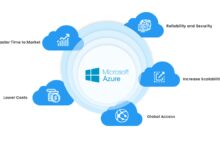
Azure and DevOps: The Ultimate Synergy for Modern Development

When it comes to accelerating software delivery while maintaining quality, few combinations are as potent as Azure and DevOps. Microsoft Azure, a leading cloud computing platform, seamlessly integrates with Azure DevOps, a comprehensive suite of development tools, to create a robust ecosystem for continuous integration, delivery, and monitoring. This synergy empowers development and operations teams to collaborate more effectively, reduce time-to-market, and enhance application reliability.
What Is Azure and How Does It Support DevOps?
Microsoft Azure offers over 200 cloud services, including computing, storage, networking, and AI capabilities. Its global infrastructure and pay-as-you-go model make it ideal for organizations of all sizes. When combined with DevOps practices, Azure becomes more than just a hosting platform—it transforms into a dynamic environment where automation, scalability, and resilience are built into every stage of the software lifecycle.
- Compute services like Azure Virtual Machines and Azure Kubernetes Service (AKS) enable flexible deployment options.
- Serverless computing with Azure Functions supports event-driven architectures, reducing operational overhead.
- Integrated security and compliance tools ensure that DevOps pipelines meet enterprise standards.
Azure’s native integration with Azure DevOps simplifies the setup of CI/CD pipelines, infrastructure as code (IaC), and monitoring workflows. This tight coupling reduces friction between development and operations, enabling faster feedback loops and more reliable deployments.
Understanding Azure DevOps: Beyond Just Tools
Azure DevOps isn’t a single tool—it’s a complete platform comprising five core services: Azure Repos (version control), Azure Pipelines (CI/CD), Azure Boards (agile planning), Azure Artifacts (package management), and Azure Test Plans (manual and automated testing). Together, these services support end-to-end DevOps workflows, from idea to deployment and beyond.
- Azure Repos supports both Git and Team Foundation Version Control (TFVC), offering flexibility for teams transitioning from legacy systems.
- Azure Pipelines provides cloud-hosted and self-hosted agents for building and deploying applications across multiple platforms, including Linux, Windows, and macOS.
- Azure Boards enables teams to manage backlogs, sprints, and work items using Scrum, Kanban, or custom workflows.
One of the most powerful aspects of Azure and DevOps is its extensibility. Through the Azure DevOps Marketplace, teams can integrate third-party tools like SonarQube, Terraform, and Docker, creating a tailored DevOps ecosystem that fits their unique needs. Microsoft’s official documentation provides extensive guidance on configuring and optimizing these integrations.
“DevOps is not about tools—it’s about culture, automation, measurement, and sharing. Azure provides the platform; Azure DevOps provides the process.” — Microsoft Azure Architecture Center
Key Benefits of Integrating Azure and DevOps
The integration of Azure and DevOps delivers measurable improvements across development speed, operational stability, and team collaboration. Organizations that adopt this combination report faster release cycles, reduced downtime, and improved developer productivity. Let’s explore the most impactful benefits in detail.
Accelerated Software Delivery
One of the primary goals of DevOps is to shorten the software development lifecycle. With Azure and DevOps, teams can automate builds, tests, and deployments, enabling multiple releases per day. Azure Pipelines supports YAML-based configurations, making pipelines version-controlled and reusable across projects.
- Automated CI/CD pipelines trigger on every code commit, ensuring rapid feedback.
- Deployment slots in Azure App Service allow for zero-downtime deployments and easy rollbacks.
- Feature flags and canary releases enable safe experimentation and gradual rollouts.
For example, a fintech company using Azure and DevOps reduced its deployment time from 4 hours to under 15 minutes by automating testing and leveraging Azure’s scalable infrastructure. This speed allows businesses to respond quickly to market demands and customer feedback.
Enhanced Collaboration and Visibility
Traditional development workflows often suffer from silos between developers, testers, and operations teams. Azure and DevOps break down these barriers by providing shared tools and real-time visibility into project status. Azure Boards, for instance, allows stakeholders to track work items, bugs, and epics in a centralized dashboard.
- Customizable dashboards provide real-time insights into sprint progress and pipeline health.
- Integration with Microsoft Teams and Slack keeps communication seamless.
- Work item traceability ensures compliance and audit readiness.
This transparency fosters accountability and alignment across teams, reducing misunderstandings and rework. When everyone has access to the same data, decision-making becomes faster and more informed.
Scalability and Resilience by Design
Azure’s global cloud infrastructure ensures that applications built with Azure and DevOps can scale on demand. Whether handling sudden traffic spikes or expanding to new regions, Azure provides the tools to maintain performance and availability.
- Auto-scaling rules in Azure Monitor dynamically adjust compute resources based on load.
- Availability Zones and geo-redundant storage protect against regional outages.
- Disaster recovery solutions like Azure Site Recovery ensure business continuity.
DevOps practices further enhance resilience by promoting infrastructure as code (IaC) and automated testing. With tools like Azure Resource Manager (ARM) templates or Bicep, teams can define and deploy environments consistently, reducing configuration drift and human error.
Setting Up Your First Azure and DevOps Pipeline
Getting started with Azure and DevOps doesn’t require a massive overhaul. You can begin with a simple CI/CD pipeline and gradually expand as your team gains confidence. This section walks you through the essential steps to create your first pipeline.
Step 1: Create an Azure DevOps Organization
The first step is to sign up for Azure DevOps and create an organization. This acts as a container for your projects, repositories, and pipelines. You can use a Microsoft account or an Azure Active Directory (AAD) identity for authentication.
- Visit Azure DevOps Services and sign in.
- Follow the prompts to create a new organization.
- Invite team members and assign appropriate permissions.
Once your organization is set up, you can create a new project to house your code, pipelines, and work items.
Step 2: Initialize a Repository and Connect to Azure
Next, create a Git repository in Azure Repos to store your source code. You can either initialize it with a README file or push an existing project from your local machine.
- Clone the repository to your local environment using Git.
- Add your application code and commit the changes.
- Push the code to the remote repository in Azure DevOps.
To deploy the code to Azure, ensure you have an Azure subscription and the necessary permissions. You can link your Azure subscription to Azure DevOps using service connections, which securely store credentials for deployment.
azure and devops – Azure and devops menjadi aspek penting yang dibahas di sini.
Step 3: Build and Deploy with Azure Pipelines
Now it’s time to create a CI/CD pipeline. Azure Pipelines supports both a visual editor and YAML configuration, with YAML being the preferred method for version control and reusability.
- In your Azure DevOps project, navigate to Pipelines and select “New Pipeline”.
- Choose the repository and branch (e.g., main).
- Select a template (e.g., ASP.NET Core, Node.js, Python) or start with a blank YAML file.
Here’s a simple example of a YAML pipeline for a Node.js app:
trigger:
  - main

pool:
  vmImage: 'ubuntu-latest'

steps:
- task: NodeTool@0
  inputs:
    versionSpec: '16.x'
  displayName: 'Install Node.js'

- script: npm install
  displayName: 'npm install'

- script: npm run build --if-present
  displayName: 'npm build'

- task: AzureRmWebAppDeployment@4
  inputs:
    ConnectionType: 'AzureRM'
    azureSubscription: 'your-subscription'
    appType: 'webApp'
    WebAppName: 'your-app-name'
    packageForLinux: '$(System.DefaultWorkingDirectory)/**/dist'
This pipeline triggers on every push to the main branch, installs dependencies, builds the app, and deploys it to an Azure Web App. You can customize it based on your tech stack and deployment requirements.
Infrastructure as Code with Azure and DevOps
One of the pillars of modern DevOps is Infrastructure as Code (IaC), which treats infrastructure configuration as software. With Azure and DevOps, you can define, version, and deploy infrastructure using declarative templates, ensuring consistency and repeatability.
Using ARM Templates and Bicep
Azure Resource Manager (ARM) templates are JSON-based files that define the infrastructure and configuration for your Azure resources. While powerful, they can be verbose and hard to maintain. Microsoft introduced Bicep as a simpler, more readable alternative.
- Bicep files are compiled into ARM templates, offering the best of both worlds: simplicity and compatibility.
- Bicep supports modularity, parameters, and expressions, making it ideal for complex environments.
- You can deploy Bicep files directly using Azure CLI, PowerShell, or Azure Pipelines.
Example Bicep snippet:
param location string = resourceGroup().location
param webAppName string = 'my-app-${uniqueString(resourceGroup().id)}'

resource appServicePlan 'Microsoft.Web/serverfarms@2022-03-01' = {
  name: 'my-plan'
  location: location
  sku: {
    name: 'B1'
    capacity: 1
  }
}

resource webApp 'Microsoft.Web/sites@2022-03-01' = {
  name: webAppName
  location: location
  properties: {
    serverFarmId: appServicePlan.id
  }
}
This Bicep file defines an App Service Plan and a Web App, which can be deployed as a single unit. By storing these files in version control, teams can track changes, review pull requests, and roll back if needed.
Integrating Terraform with Azure and DevOps
While Bicep is Azure-native, many organizations use Terraform for multi-cloud infrastructure management. Terraform’s declarative syntax and provider model make it a popular choice for IaC.
- Azure DevOps Pipelines can run Terraform scripts using the Terraform CLI task or custom scripts.
- State files can be stored in Azure Blob Storage for remote backend support.
- Approval gates and manual interventions ensure safe infrastructure changes.
By integrating Terraform into Azure Pipelines, teams can automate infrastructure provisioning alongside application deployment, creating a unified CI/CD experience. The AzureRM provider documentation offers detailed guidance on configuring resources.
“Infrastructure as code eliminates snowflake servers and enables reproducible environments.” — Martin Fowler
Monitoring and Feedback Loops in Azure and DevOps
DevOps isn’t complete without robust monitoring and feedback mechanisms. Azure provides powerful observability tools that integrate seamlessly with DevOps workflows, enabling teams to detect issues early and improve system performance.
Leveraging Azure Monitor and Application Insights
Azure Monitor collects telemetry from applications, infrastructure, and logs, providing a unified view of system health. Application Insights, a component of Azure Monitor, offers deep insights into application performance, including request rates, response times, and exception tracking.
- Application Insights can be enabled with minimal code changes, especially for .NET, Java, and Node.js apps.
- Custom metrics and logs can be sent to Azure Monitor for centralized analysis.
- Smart alerts notify teams of anomalies or threshold breaches.
By integrating monitoring into the CI/CD pipeline, teams can implement canary analysis or automated rollbacks based on performance metrics. For example, if a new deployment causes a spike in error rates, the pipeline can automatically revert to the previous version.
Using Log Analytics and Dashboards
Log Analytics, part of Azure Monitor, allows teams to query and visualize log data using Kusto Query Language (KQL). This enables powerful troubleshooting and trend analysis.
- Create custom queries to detect security threats or performance bottlenecks.
- Build interactive dashboards to share insights with stakeholders.
- Schedule reports and export data for compliance audits.
These dashboards can be embedded in Azure DevOps work items or shared via Power BI, ensuring that operational data informs development decisions.
Security and Compliance in Azure and DevOps
In today’s regulatory landscape, security and compliance are non-negotiable. Azure and DevOps provide built-in features and best practices to help organizations meet standards like GDPR, HIPAA, and SOC 2.
Securing CI/CD Pipelines
Pipelines are a potential attack vector if not properly secured. Azure DevOps offers several mechanisms to protect your workflows:
- Use service connections with least-privilege permissions to limit access to Azure resources.
- Enable pipeline approvals and checks for production deployments.
- Scan code and dependencies for vulnerabilities using integrated tools like GitHub Advanced Security or third-party scanners.
Additionally, enabling audit logs in Azure DevOps helps track user actions and pipeline executions, supporting forensic investigations and compliance reporting.
Enforcing Policy as Code
Policy as Code ensures that infrastructure and deployments comply with organizational standards. Azure Policy and Open Policy Agent (OPA) can be used to enforce rules across environments.
azure and devops – Azure and devops menjadi aspek penting yang dibahas di sini.
- Azure Policy can restrict resource creation to approved regions or SKUs.
- OPA with Rego policies can validate Terraform or Bicep templates before deployment.
- Integrate policy checks into pull requests to catch violations early.
This proactive approach reduces the risk of misconfigurations and ensures consistency across development, staging, and production environments.
Advanced DevOps Practices on Azure
Once the basics are mastered, teams can adopt advanced DevOps practices to further optimize their workflows. These include blue-green deployments, A/B testing, and GitOps—each enhancing reliability and agility.
Implementing Blue-Green Deployments
Blue-green deployment is a technique where two identical environments (blue and green) run in parallel. While one serves live traffic, the other is updated and tested. Once verified, traffic is switched to the new environment.
- Azure Traffic Manager or Application Gateway can route traffic between environments.
- Database schema changes must be backward-compatible to avoid downtime.
- This method minimizes risk and enables instant rollbacks.
Automating blue-green deployments in Azure Pipelines ensures consistency and reduces human error during cutover.
Adopting GitOps for Kubernetes
GitOps extends DevOps principles to Kubernetes, treating the cluster state as code stored in Git. Tools like Flux or Azure Arc enable continuous reconciliation between the desired state in Git and the actual state in the cluster.
- Every change is tracked via pull requests, enhancing auditability.
- Automated sync ensures clusters match the declared configuration.
- Rollbacks are as simple as reverting a Git commit.
When combined with AKS (Azure Kubernetes Service), GitOps provides a secure, scalable way to manage containerized applications.
What is the difference between Azure DevOps and GitHub Actions?
Azure DevOps is a comprehensive platform offering version control, CI/CD, project management, and testing tools. GitHub Actions, while powerful for CI/CD, is primarily focused on automation within GitHub repositories. Azure DevOps provides deeper integration with Azure services and enterprise-grade features like Azure Boards and Test Plans.
Can I use Azure and DevOps with non-Microsoft technologies?
Absolutely. Azure and DevOps support a wide range of languages, frameworks, and platforms, including Python, Java, Node.js, and Kubernetes. You can deploy applications built with any tech stack to Azure and automate workflows using Azure Pipelines.
How do I secure secrets in Azure DevOps pipelines?
Use Azure Key Vault integrated with Azure Pipelines to securely store and retrieve secrets. Alternatively, use pipeline variable groups with secret masking enabled to protect sensitive data like API keys and passwords.
Is Azure DevOps free to use?
Azure DevOps offers a free tier with limited users and minutes for CI/CD pipelines. For larger teams or higher usage, paid plans are available. Azure services are billed separately based on consumption.
What is the role of Azure DevOps in a CI/CD pipeline?
Azure DevOps provides the tools to automate the entire CI/CD process—from code commits triggering builds, to automated testing and deployment to Azure environments. It acts as the orchestration layer that connects development, testing, and operations.
Mastering Azure and DevOps is no longer optional—it’s essential for organizations aiming to deliver software faster, safer, and at scale. From setting up CI/CD pipelines to implementing advanced practices like GitOps and policy as code, the integration of Azure and DevOps offers a complete toolkit for modern software delivery. By embracing automation, collaboration, and continuous improvement, teams can unlock unprecedented levels of efficiency and innovation.
azure and devops – Azure and devops menjadi aspek penting yang dibahas di sini.
Further Reading:
